


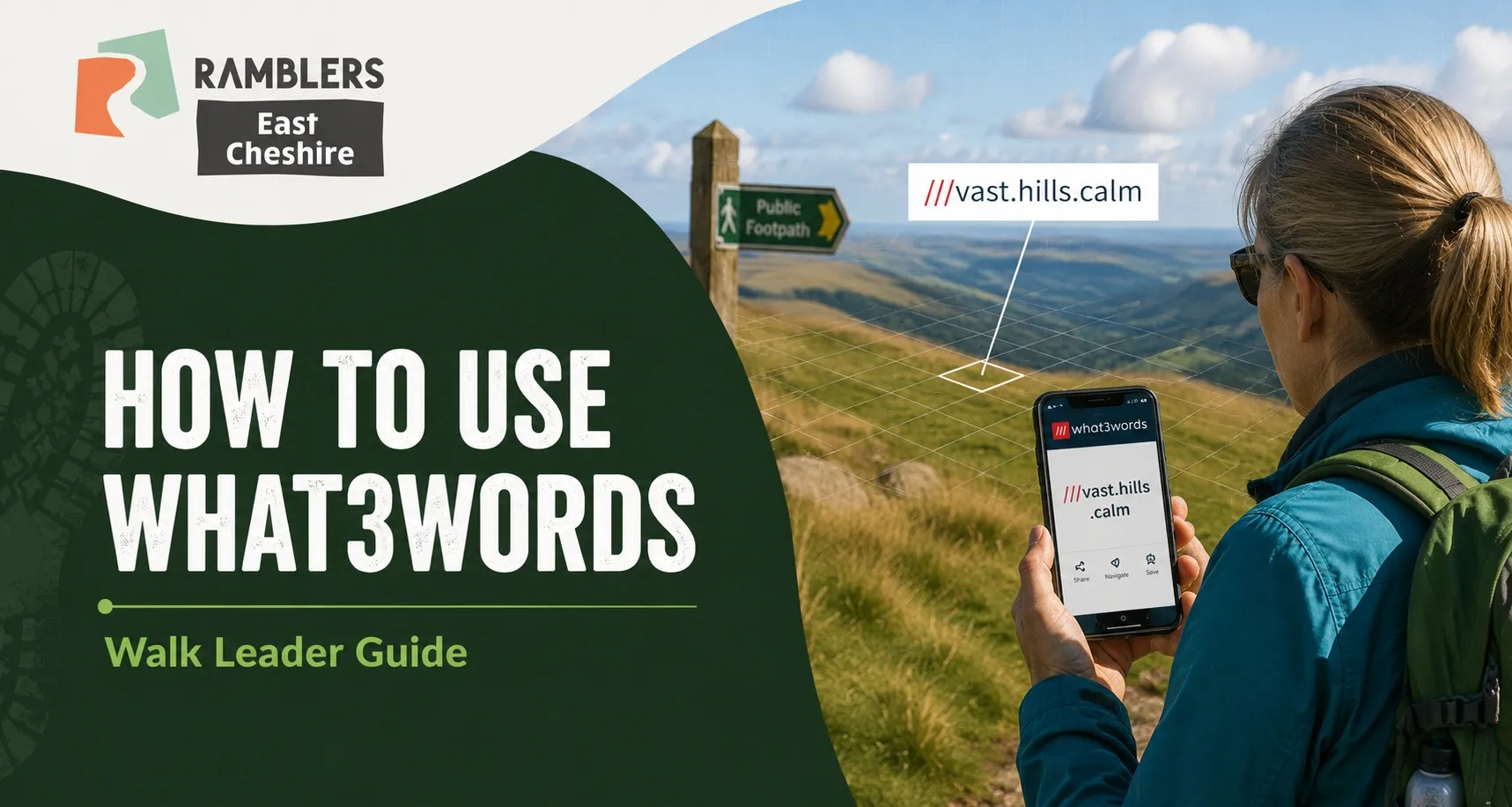

To use what3words, download the app and tap the locate icon to find your current three-word address, or use the search bar to enter a street address or place name to find a specific location. You can then share or navigate to that address by tapping the "Navigate" button, which opens directions in your preferred map app. You can access further information through this link What3Words
1. To find a what3words address for your current location
- Open the app and wait for the blue dot to stabilise, then tap the blue compass icon to find your current three-word address
2. To find the what3words for an address or place and navigate to it
- Tap the search bar and enter a street address, postcode, or place name
3. Select the precise spot:
- Zoom in on the map and switch to satellite view; if the white square is not exactly where you want it, tap the screen to select the exact 3-meter square you need. The new three-word address then appears on your phone.
- Tap ‘Navigate’ and a menu will appear with your installed navigation apps (e.g. Google Maps, Citymapper)
- Tap the app you want to use and navigate in your usual way
4. Navigation to a what3words address
- Enter the three-word address that you have (word.word.word – with the dots)
- Select the correct result from the list that appears – look carefully, there will be several results for the same 3 words but in different countries!
- Tap ‘Navigate’ and your installed navigation apps will appear
- This will prompt you to open the location in your preferred navigation app (like Google Maps or Citymapper) to get turn-by-turn directions
- Tap the app you want to use and navigate in your usual way
5. Adding Grid References in the What3Words app (Mobile):
- Open the menu (usually the top-left icon)
- Select ‘Settings’
- Tap on ’what3words Display’ (android) or Display (iPhone)
- Under Country-specific systems tap on ‘British National Grid’
- Then choose the British National Grid format you want to use (e.g. 10-digit for
- 1- metre precision, though the gps in older phones may not be up to this degree of accuracy)
6. Use in an emergency
- In an emergency, open the app and find your precise three-word address.
- Call the emergency services (999 in the UK) and provide them with the three-word address. This helps emergency services coordinate a response directly to the exact location where help is needed. (Most emergency services now accept, and may prefer, what3word addresses but grid references may still be useful for some)
7. Other useful features
- Save locations: You can save important three-word addresses, like your home or work, and organise them into lists.
- To find your saved addresses tap the menu icon (3 lines) and go to ‘Saved locations’
- Use with voice assistants: You can use voice search for hands-free operation.
- Offline use: You can still find your current location's three-word address and use the compass mode to get directions even without an internet connection.


